
Selling from the till
Ring up a walk-in customer who is buying a drink but not playing.
When to use the till
The till is for a customer who is buying something but not playing — someone who walks in for a Pepsi, or a player's friend waiting on the sofa.
If the person is already on a PlayStation, do not use this screen. Add the drink to their session instead, from the Products button on their card, so it lands on one bill at the end. See while the session is running.
Open New Sale
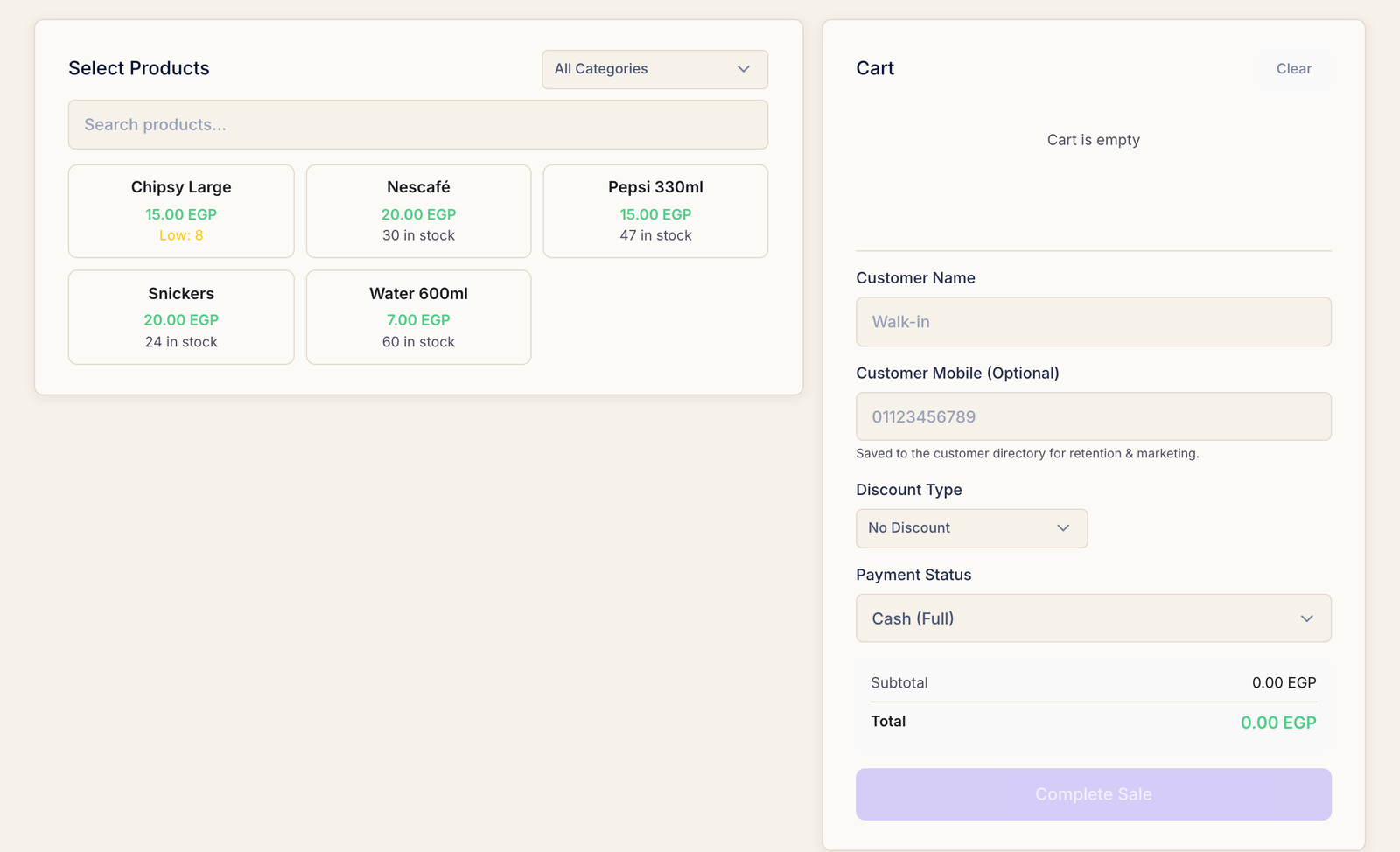
Sales → New Sale. Your products fill the left of the screen, grouped by the category chips along the top; the cart is on the right.
Build the cart
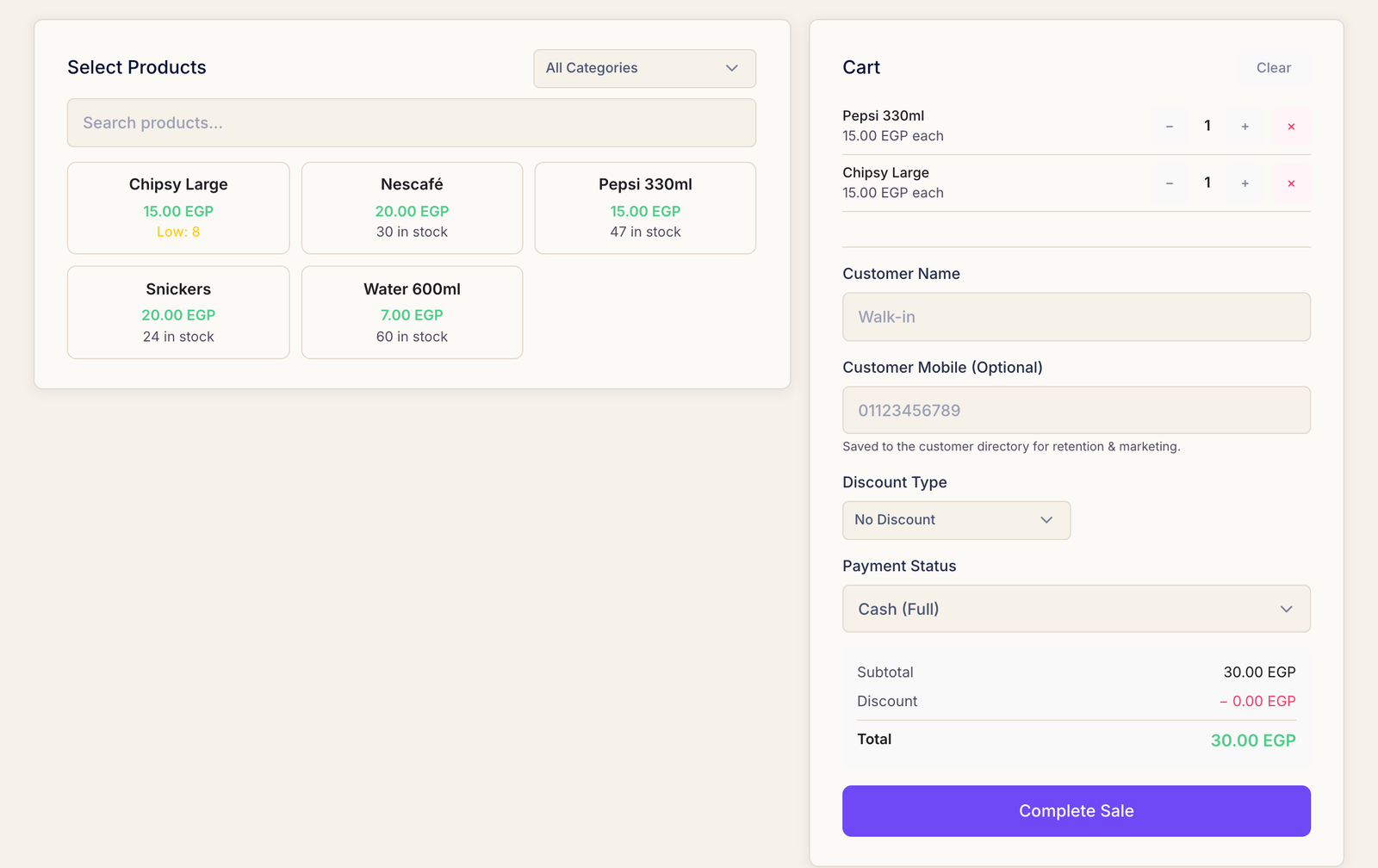
Tap a product to add it. Tap it again for a second one, or change the quantity in the cart. The subtotal keeps up as you go, and Clear empties the cart if the customer changes their mind entirely.
Each tile shows how many are left, so you can see before you sell that the fridge is nearly empty.
Customer, discount, payment
- Customer Name and Customer Mobile are optional. Filling them in files the sale under that customer in your directory; leaving them empty records a plain walk-in.
- Discount Type — No Discount, Fixed for pounds off, or % for a percentage. The total updates before you commit.
- Payment Status — Cash (Full), InstaPay (Full), Digital Wallet (Full), Unpaid, or Partially Paid.
The payment method matters at closing time. It decides which figure your shift is counted against — cash in the drawer, or money that arrived by transfer. Recording a transfer as cash is what makes a drawer come up short.
Complete the sale
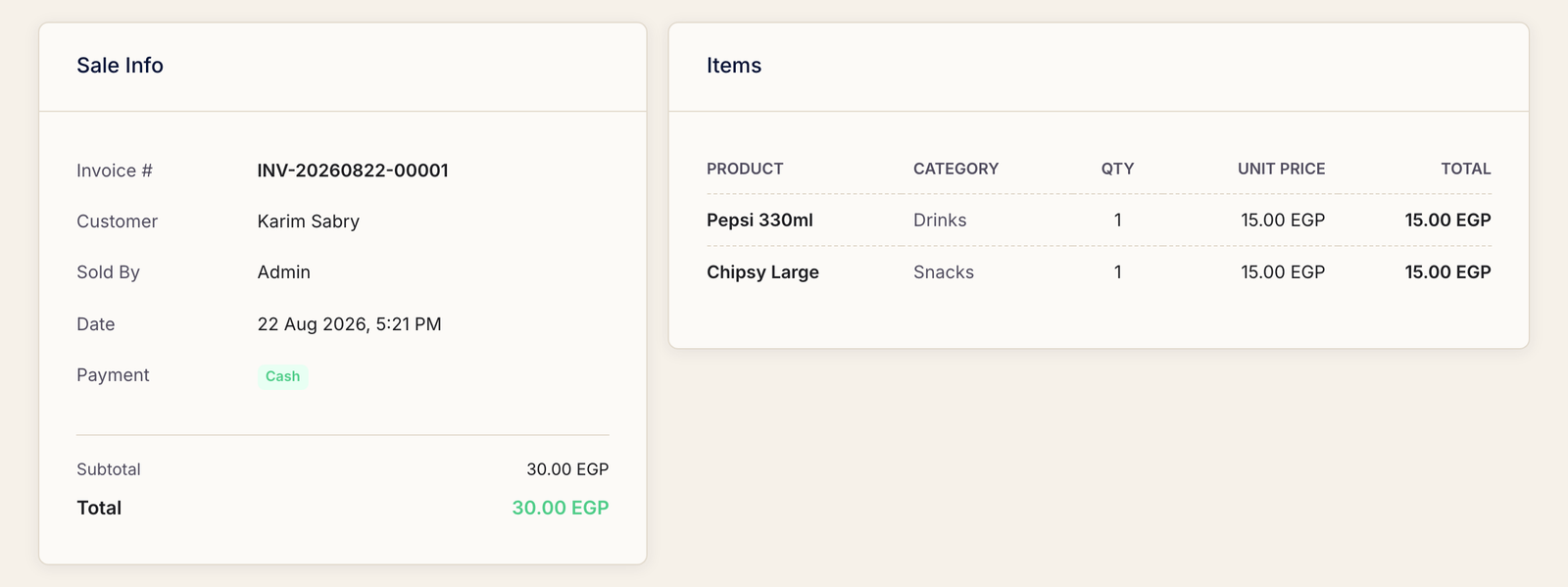
Press Complete Sale. Rank saves it, takes the items off your stock and opens the sale's own page with an invoice number on it.
The receipt, and refunds
The sale page lists the invoice number, the customer, who sold it, when, how it was paid and every line item. Invoice prints a customer copy.
Refund reverses it. It is deliberately not something every account can do — refunding requires its own permission, and if the owner has turned on the privacy PIN, Rank asks for that too before it will go through.
Common questions
A product is not on the screen.
Either it is set to Inactive, or it belongs to a different branch from the one you are working in. Check it on the Products page.
Can I sell something I have run out of?
The tile shows you the count so you can see the shelf is empty before you promise it to anyone. Sell what you physically have, then record the next delivery on the Stock Levels page so the numbers match the fridge again.
Does a sale need an open shift?
Employees work inside a shift, so that the money they take has somewhere to land. The owner can sell without one.