
Adding an employee
Create a staff account and tick only the permissions that job needs.
Only the café owner can create accounts.
Open Users
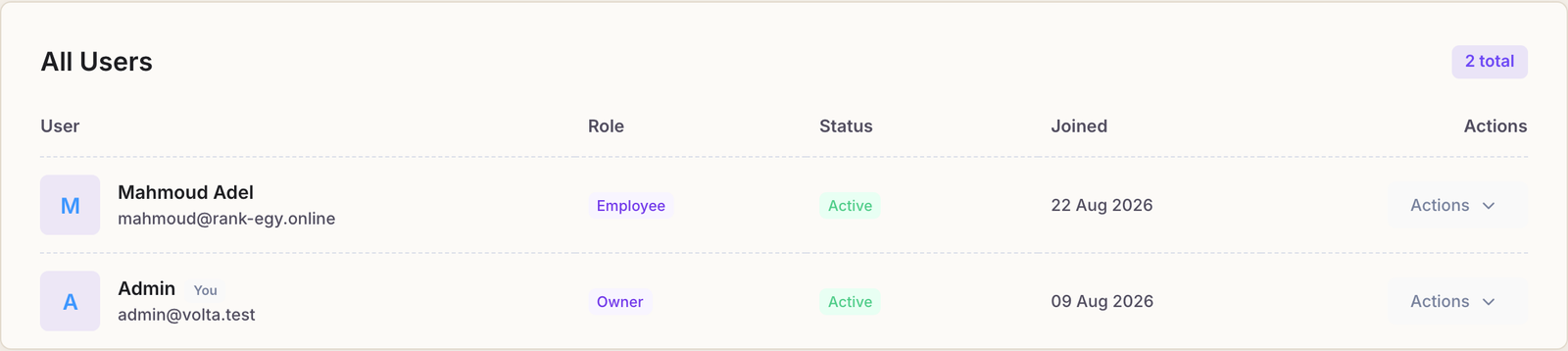
Users in the menu lists everyone who can sign in, with their role, their status and when they joined. Press Add User.
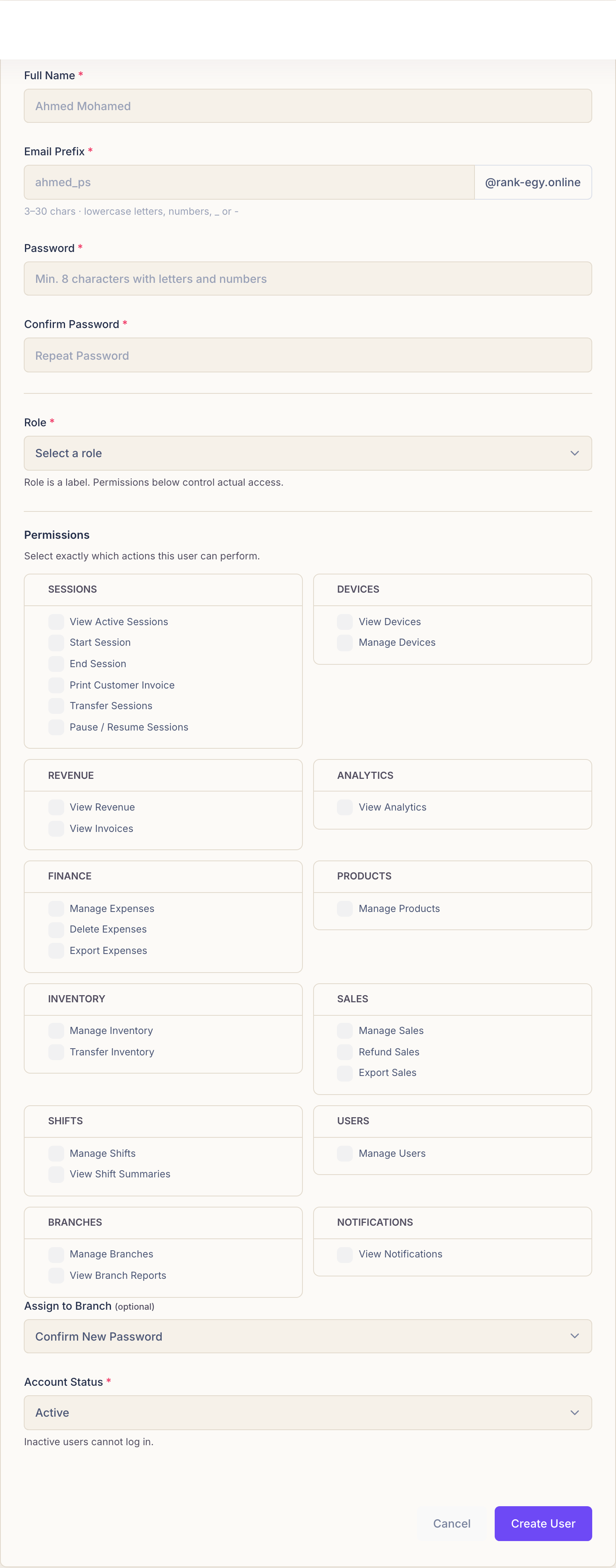
Account details
- Full Name — their real name. It is what appears on every session and sale they touch.
- Email Prefix — the part before the @. Rank builds the rest of the address for you, so you type mahmoud, not a whole email. Three to thirty characters, lowercase letters, numbers, underscore or hyphen.
- Password and Confirm Password — a starting password to hand over.
One login per person. A shared account makes the shift report meaningless: Rank can only tell you who took the money if “who” means one person.
Role
Employee or Manager. Rank says it plainly on the form: the role is a label. It is what appears next to their name — it does not decide what they can open.
The permissions below do that, and they are worth reading properly.
Permissions
A long list of tick boxes, grouped by the part of the app each one unlocks: sessions, devices, revenue, analytics, finance, products, inventory, sales, shifts, users, branches, notifications.
Some are worth pausing over:
- View Revenue shows what the café takes. Most floor staff have no reason to see it.
- Refund Sales and Delete Expenses both move money out of the books.
- Manage Users lets that person create accounts of their own.
- Manage Devices includes changing prices.
A sensible starting set
For someone who works the floor and the till and nothing else:
- View Active Sessions, Start Session, End Session
- View Devices — so they can see the machines, without being able to reprice them
- Manage Sales — the till
- Manage Shifts — their own drawer
Leave revenue, analytics, users and branches unticked. You can add a permission the day someone needs it; taking one back after a mistake is harder.
Branch and status
- Assign to Branch (optional) — which shop they work in.
- Account Status — Active can sign in; Inactive cannot.
Press Create User and hand them their password.
Common questions
Someone has left. Delete their account?
Set it to Inactive. They can no longer sign in, and every shift and session they worked stays attached to their name — which is what you want when you look back at last month.
The Add User button says I have reached a limit.
Your plan allows a set number of employees. Deactivating someone who has left frees a slot, or you can upgrade.
An employee says a menu item is missing.
That is permissions working. Edit their account, tick the one they need, and it appears the next time they load the page.
Can I see what an employee has been doing?
The shift reports show what each person took in, and every session and sale carries the name of whoever opened and closed it.